README#
SideQuest Companion#
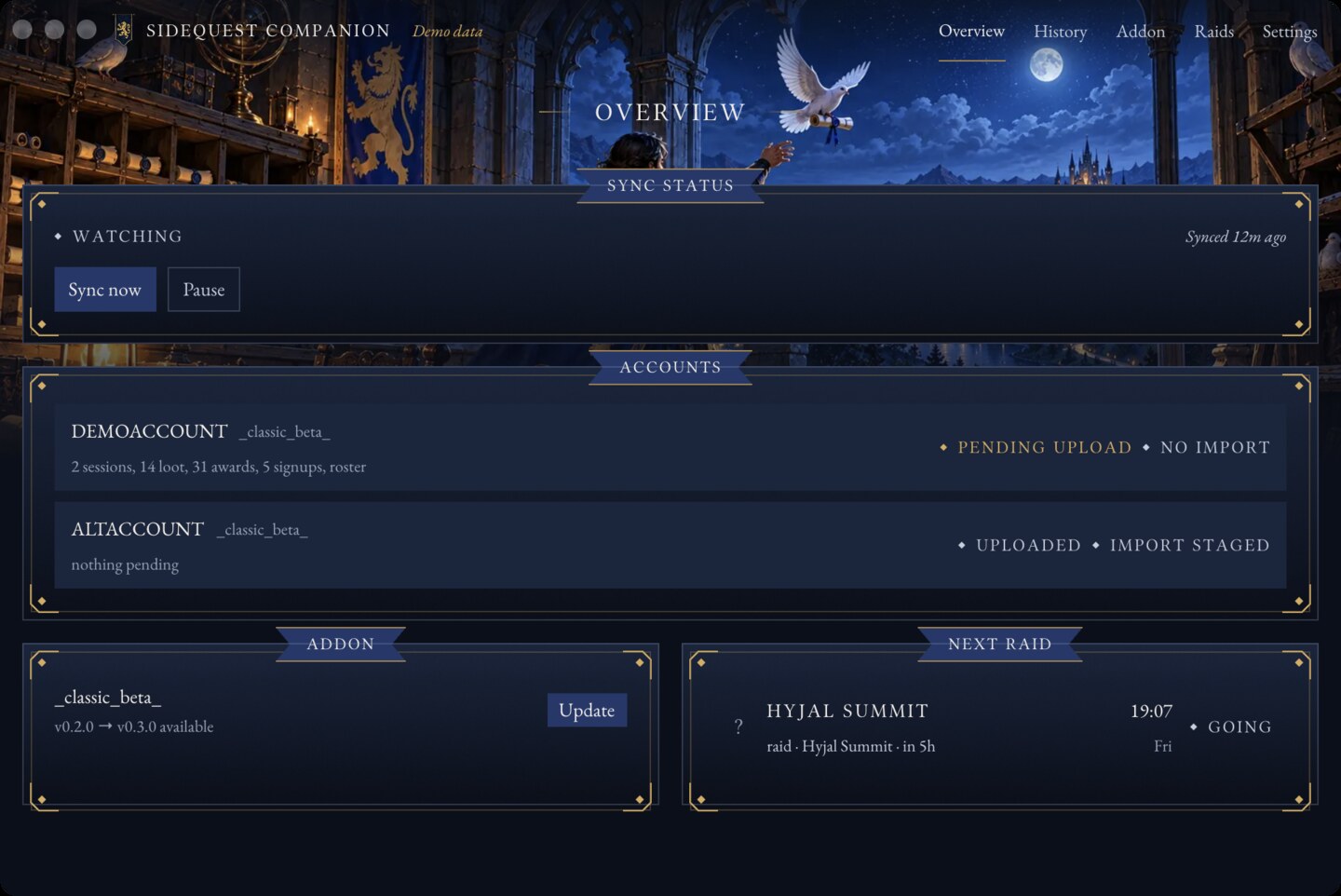
A system-tray app for the SideQuest guild addon. It watches the addon’s save file, uploads new raid records to sidequest-guild.com as soon as they appear, stages the site’s reply back for the addon to pick up at your next login, keeps the addon itself up to date, and reminds you before raids. It’s a small native app built with GPUI – no browser, no webview, just a window that draws itself.
Install#
Download the file for your system from Releases:
System |
File |
|---|---|
Windows (Intel/AMD) |
|
Windows (ARM) |
|
macOS (Intel or Apple Silicon) |
|
Linux (x86_64) |
|
macOS: unzip, drag SideQuest Companion.app wherever you like, and open it. The app is signed with an ad-hoc
signature (not a paid Apple Developer certificate), so the first launch is blocked by Gatekeeper. Either right-click
the app and choose Open, or run xattr -d com.apple.quarantine "SideQuest Companion.app" once, then launch it
normally from then on.
Windows: unzip and run sidequest-companion.exe. SmartScreen will warn about an unrecognized app the first time;
click More info, then Run anyway. This isn’t a sign the file is unsafe – see
Verifying a download to check it yourself.
Linux: untar anywhere, then run sidequest-companion. The tarball also has a .desktop file and an icon if you
want it in your app launcher: copy sidequest-companion.desktop to ~/.local/share/applications/ and
sidequest-companion.png to ~/.local/share/icons/hicolor/256x256/apps/, fixing the Exec=/Icon= paths to point
at where you put the binary.
Set up#
In game, as an officer, open the Console’s Sync tab and get a sync token (or visit sidequest-guild.com/officers/sync/ directly). The site shows it once.
Open the companion and paste the token into Settings. It goes straight into your OS keyring, never into a plain settings file.
The companion finds your WoW installation on its own; if it guesses wrong, set the path in Settings.
What it does#
Auto-sync: whenever the addon writes a new
SQX1:export toSideQuest.lua(on logout or/reload), the companion uploads it within a few seconds and shows the result – new sessions, encounters, loot, awards – in its History tab.Import staging: after a successful upload, the companion asks the site for the matching
SQI1:game import and writes it intoSideQuest.luaas a staged inbox entry, but only while WoW is closed. The addon applies it automatically the next time an officer logs in, then clears it. You never have to copy-paste an import string by hand.Addon updates: the companion checks the addon’s GitHub releases against the version installed in your
AddOnsfolder and offers to install the latest one – the same signed zip CurseForge serves.Self-update: the companion updates itself the same way, checked against its own releases.
Raid reminders: a notification before raids you’re signed up for (or every public raid, your choice), pulled from your private calendar feed or the site’s public events.
Settings and logs#
What |
macOS |
Windows |
Linux |
|---|---|---|---|
Settings |
|
|
|
Logs |
|
|
|
Logs never contain your sync token, calendar URL, or raw addon export data.
Verifying a download#
Every release asset is built by GitHub Actions from a signed tag and attested with build provenance. With the GitHub CLI installed:
gh attestation verify sidequest-companion-0.2.0-macos-universal.zip --repo SideQuest-Guild/companion
Or check it against the published checksums:
sha256sum -c SHA256SUMS.txt
See SECURITY.md for what else is in scope and how to report a problem privately.
Development#
make install   # rustup components + cargo-deny
make ci         # fmt check, clippy, tests, cargo-deny -- same as CI
make run        # run the companion
make demo       # run it against fixture data, no real WoW install or network needed
On Linux you’ll need GPUI’s build dependencies first; see the Install Linux build dependencies step in
.github/workflows/ci.yml for the exact package list. On macOS you need full Xcode
installed (not just the Command Line Tools), since GPUI compiles Metal shaders at build time.
make bundle-macos builds a release binary and assembles a local, ad-hoc-signed SideQuest Companion.app using the
same script (packaging/macos/bundle.sh) the release workflow uses, so you can test the bundle without waiting on CI.
Screenshots for this README live in docs/screenshots/: gate.jpg, sign-in.jpg, overview.jpg,
overview-member.jpg, history.jpg, addon.jpg, raids.jpg, settings.jpg.
Releasing#
Commit subjects follow Conventional Commits.
git-cliff builds CHANGELOG.md from them; feat, fix and perf commits are listed and
the rest are left out.
git cliff --tag v0.2.0 -o CHANGELOG.md
git commit -am "docs: changelog for v0.2.0"
git tag -s v0.2.0 -m "SideQuest Companion v0.2.0"
git push origin main v0.2.0
Pushing the tag builds every platform asset, writes that version’s release notes, signs build provenance and an SBOM
for each asset, and publishes them as a GitHub release. A published release’s files can’t be changed, and v* tags
can’t be moved or deleted, so a bad release is fixed with a new version.
To test the workflow without releasing, run it by hand from the Actions tab with the tag left blank. It builds and
signs every asset using the current Cargo.toml version and leaves a draft release named dry-run-<run id> that you
can delete. Running it by hand with an existing tag, such as v0.1.0, rebuilds and republishes that tag.
main takes signed commits only, and force pushes and deleting it are blocked.
License#
MIT. See LICENSE.